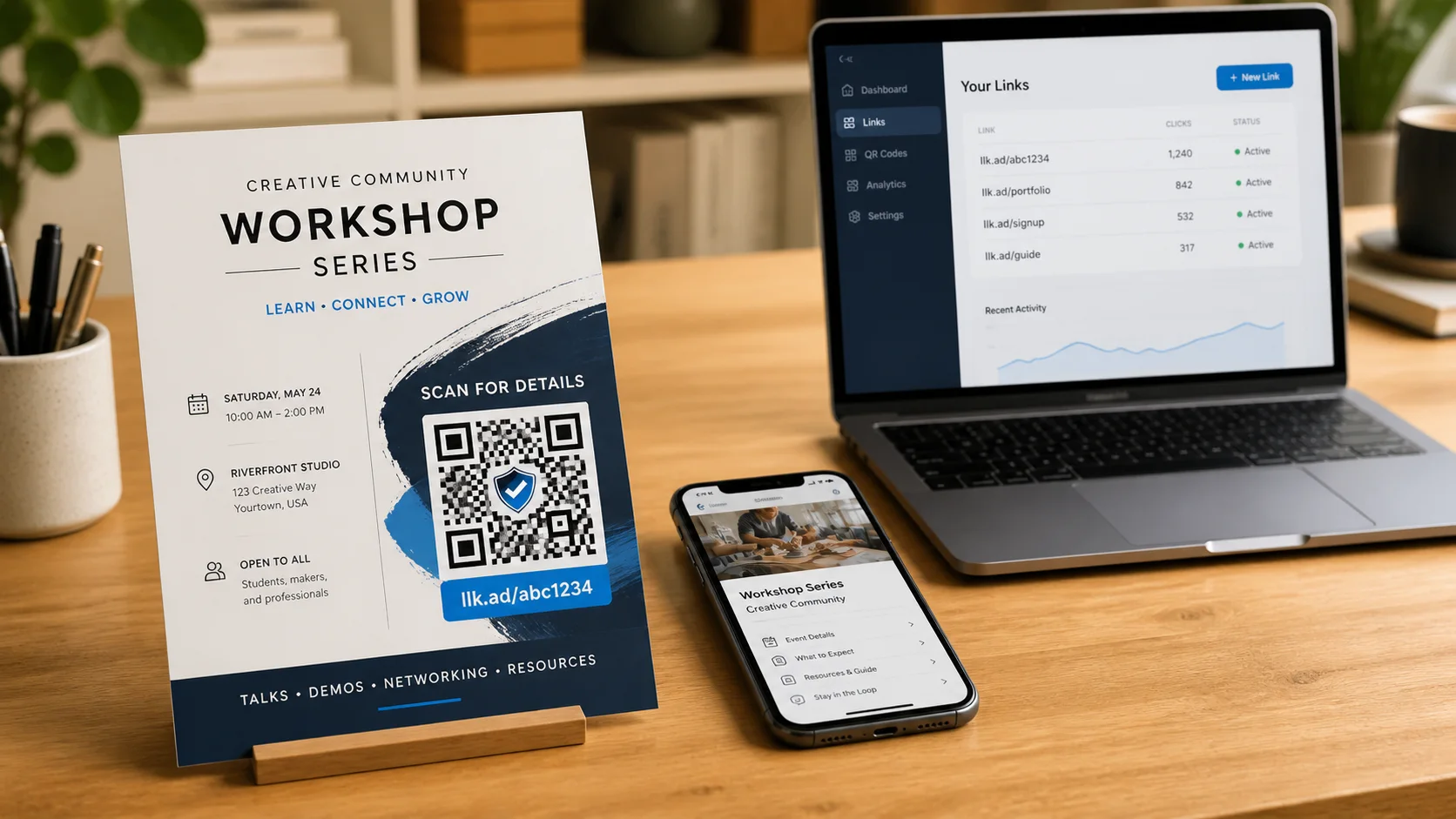
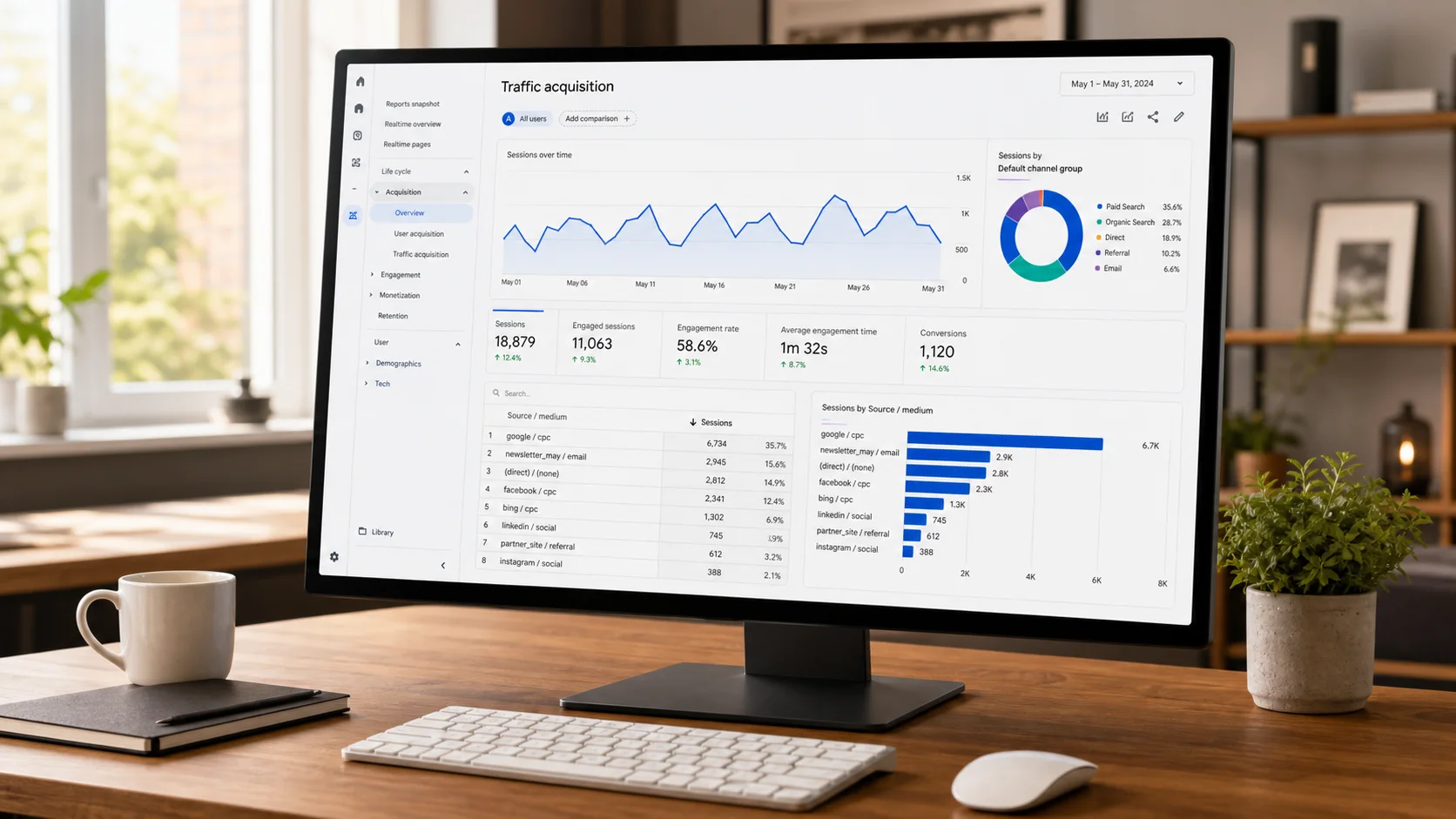
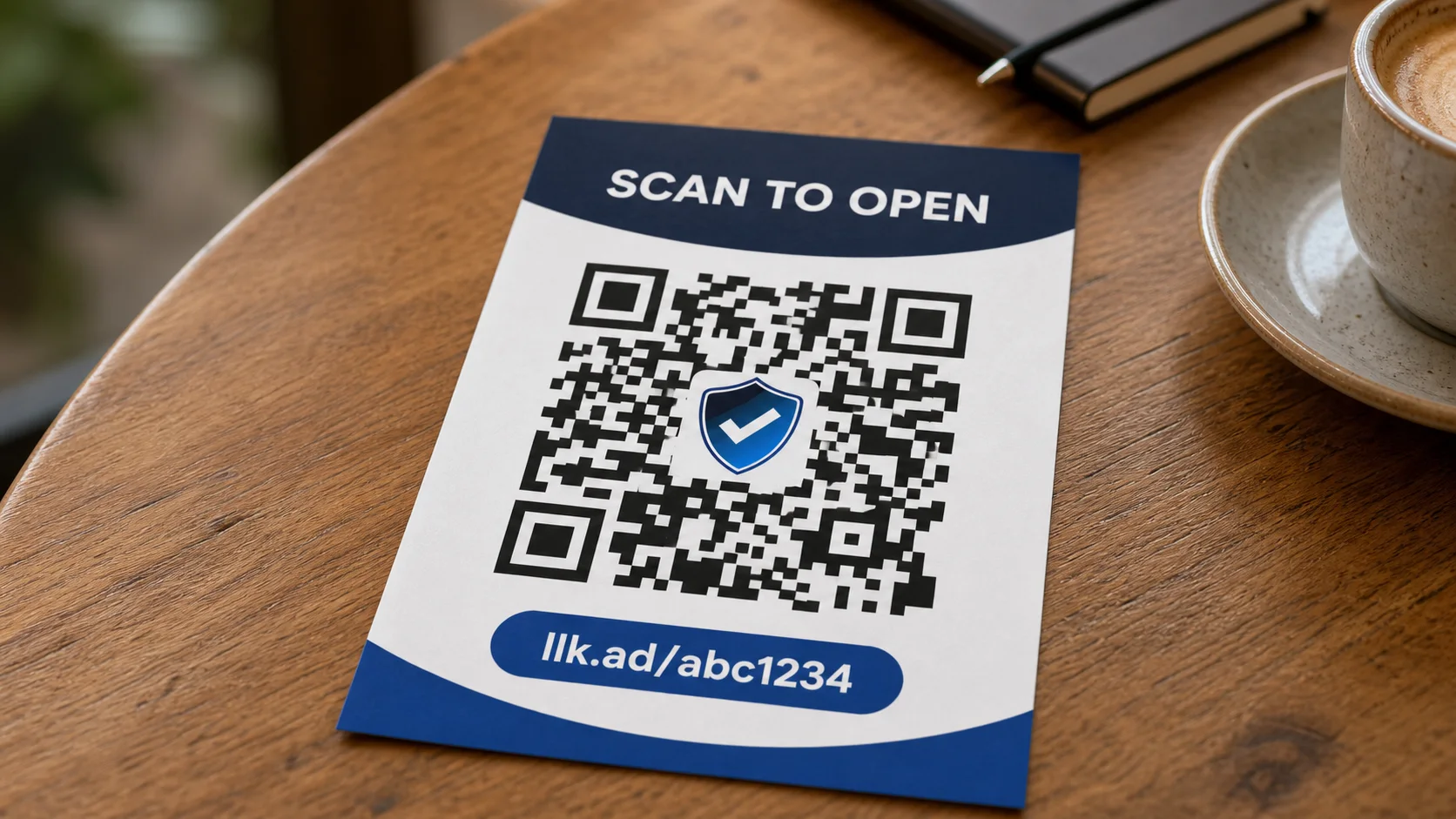
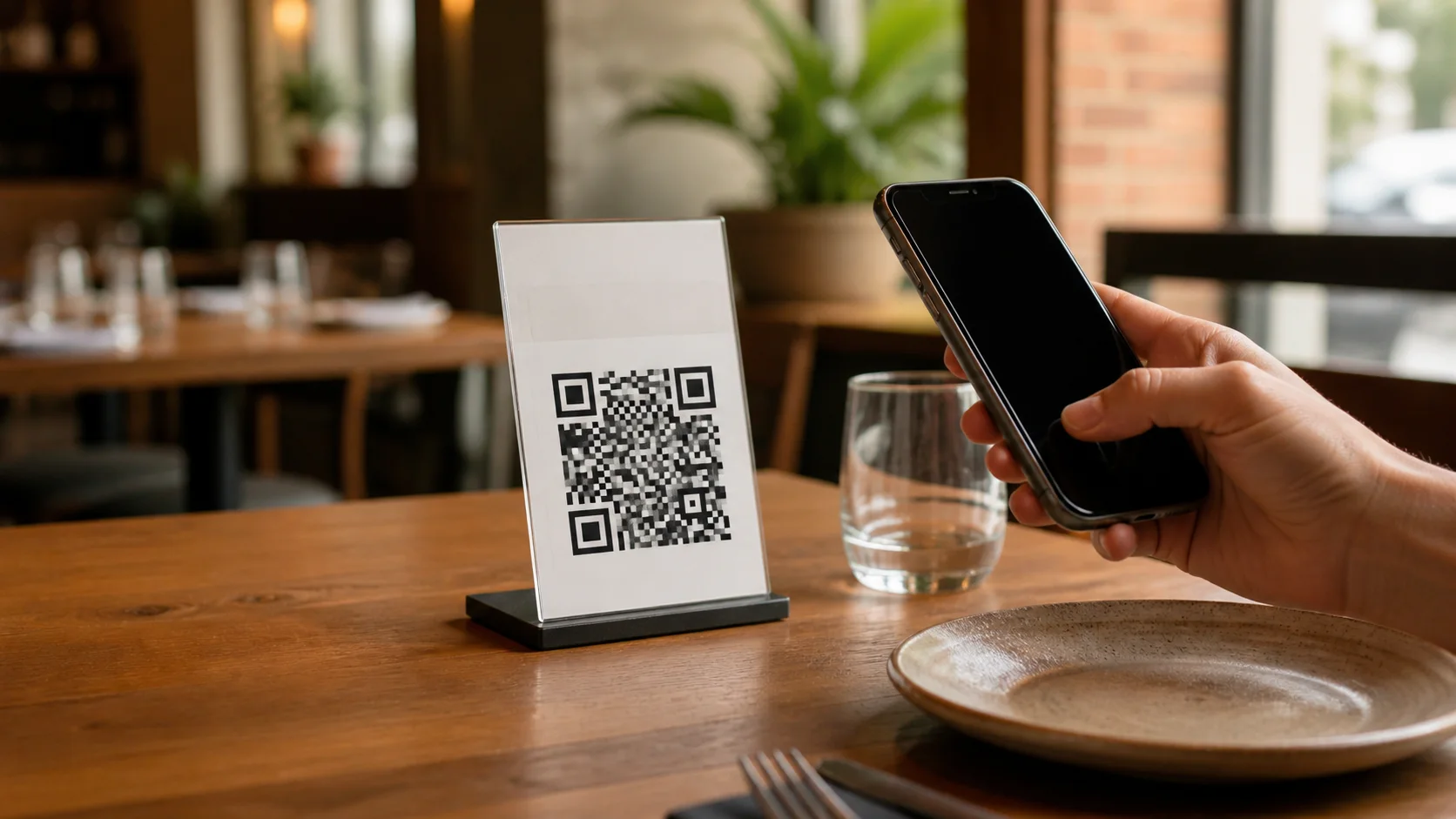
 AI-generated illustration by cutdown.link
The simple idea: put one QR code on each table and keep it there. Today it can open your menu. Later, the same printed code can open a seasonal menu, a special offer, or a web app for ordering.
This works because the QR code opens a managed cutdown.link address, not the menu directly. You can change where that address leads from your dashboard without changing the QR code.
Create the QR code
- Sign in to cutdown.link. A link created without an account cannot be edited later.
- Create a new managed link and paste the address of your current online menu.
- Give the link a clear title, such as Main dining room QR.
- Open the short link on your phone and check that the correct menu appears.
- Download the QR code. Choose SVG for professional printing or JPEG for a simple document.
Print and place it
Add a short instruction beside the code, such as Scan to view our menu. Print it on a table card, sticker, or another material that can be cleaned easily.
Keep the code flat, with empty space around it. Do not place it on a sharp curve or behind reflective glass. Before making many copies, print one sample and scan it with several phones from a normal seated position. Then check it again after the sign has been fixed to the table or wall.
Change what customers see
When your menu moves, sign in and edit the link’s destination. Paste the new menu address and save the change. The short address stays the same, so every printed copy continues to work.
You can use the same process to switch from a PDF menu to a mobile menu, a seasonal page, or a new ordering web app. Test every new destination on a phone before customers use it.
A useful way to start
Begin with one managed link for the whole restaurant if every table opens the same menu. Create separate links only when you need to measure different areas or send tables to different pages. Clear dashboard titles will make those links easier to manage later.
The dashboard reports aggregate scans as link clicks. It does not currently show orders, table numbers, customer profiles, or sales. Those details must come from your menu or ordering system.
Frequently asked questions
- Can I change the menu without printing a new QR code?
- Yes. Edit the destination of the managed link in your cutdown.link dashboard. The short link and printed QR code stay the same.
- Which file should I use for printing?
- Use SVG for signs, stickers, and professional printing because it stays sharp at different sizes. JPEG is suitable for simple office documents.
- Can the same QR code open an ordering app later?
- Yes. Change the managed link’s destination from your menu to the new ordering app when it is ready.
Experienced Marketer and Technologist