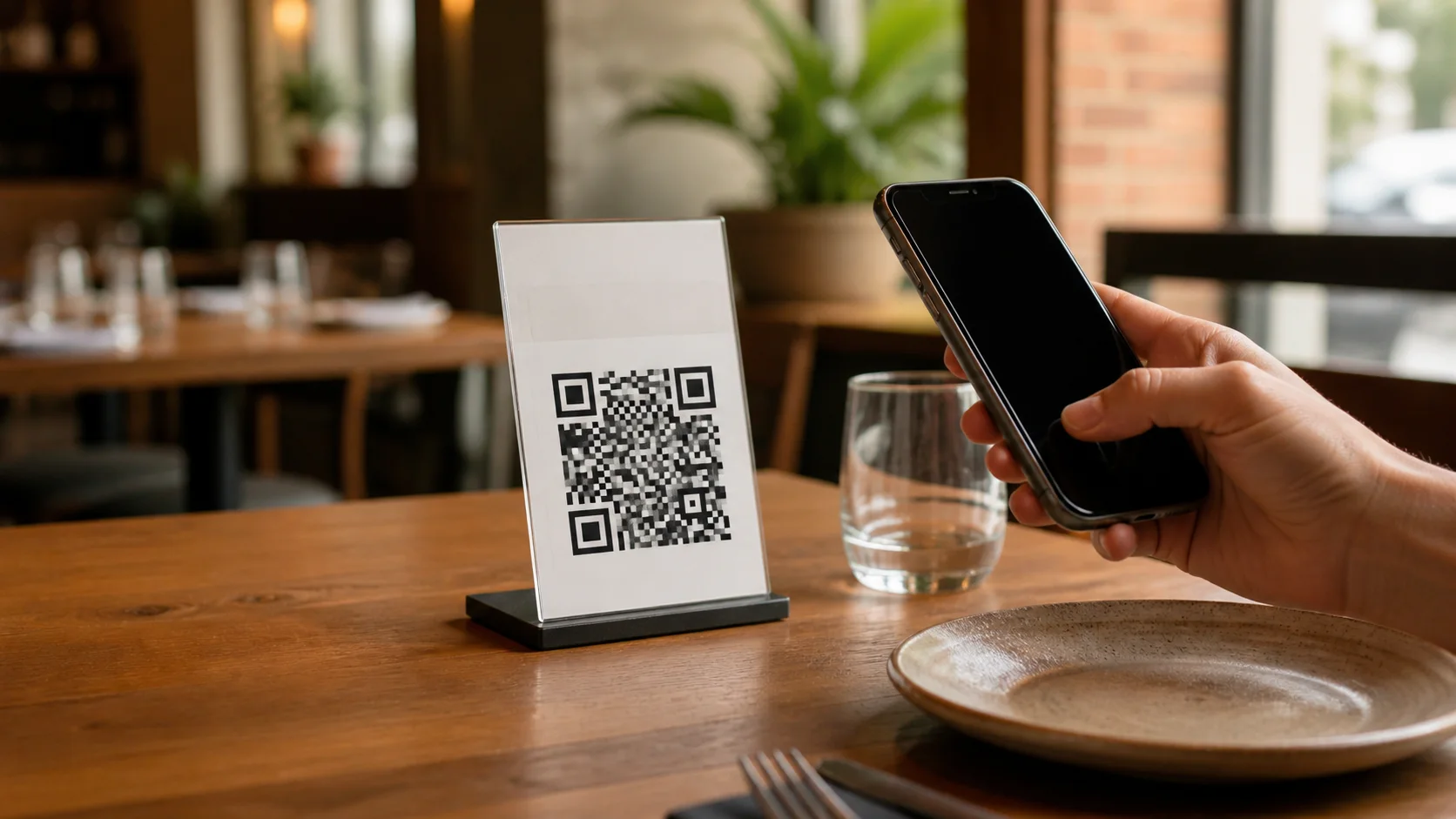
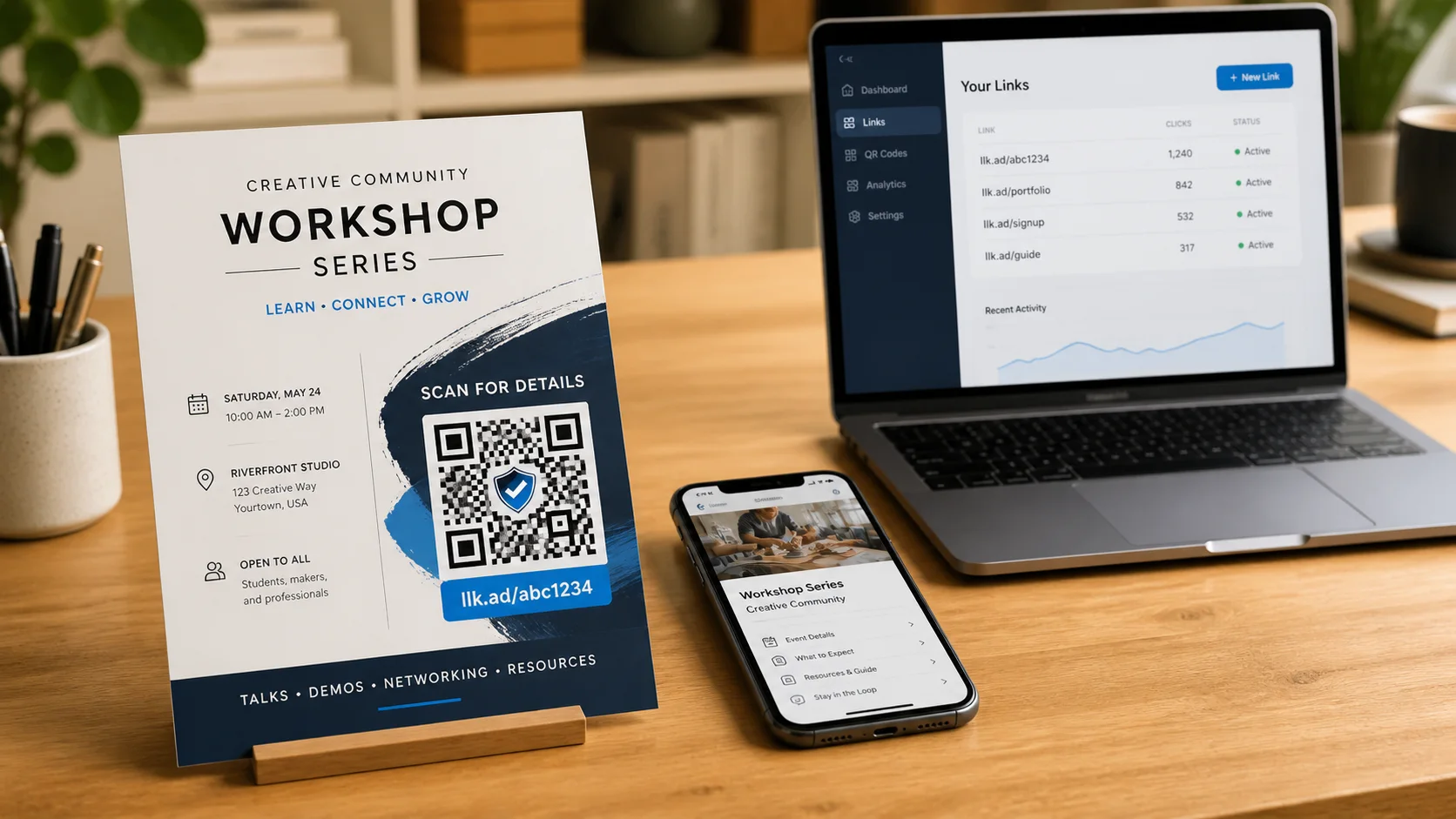
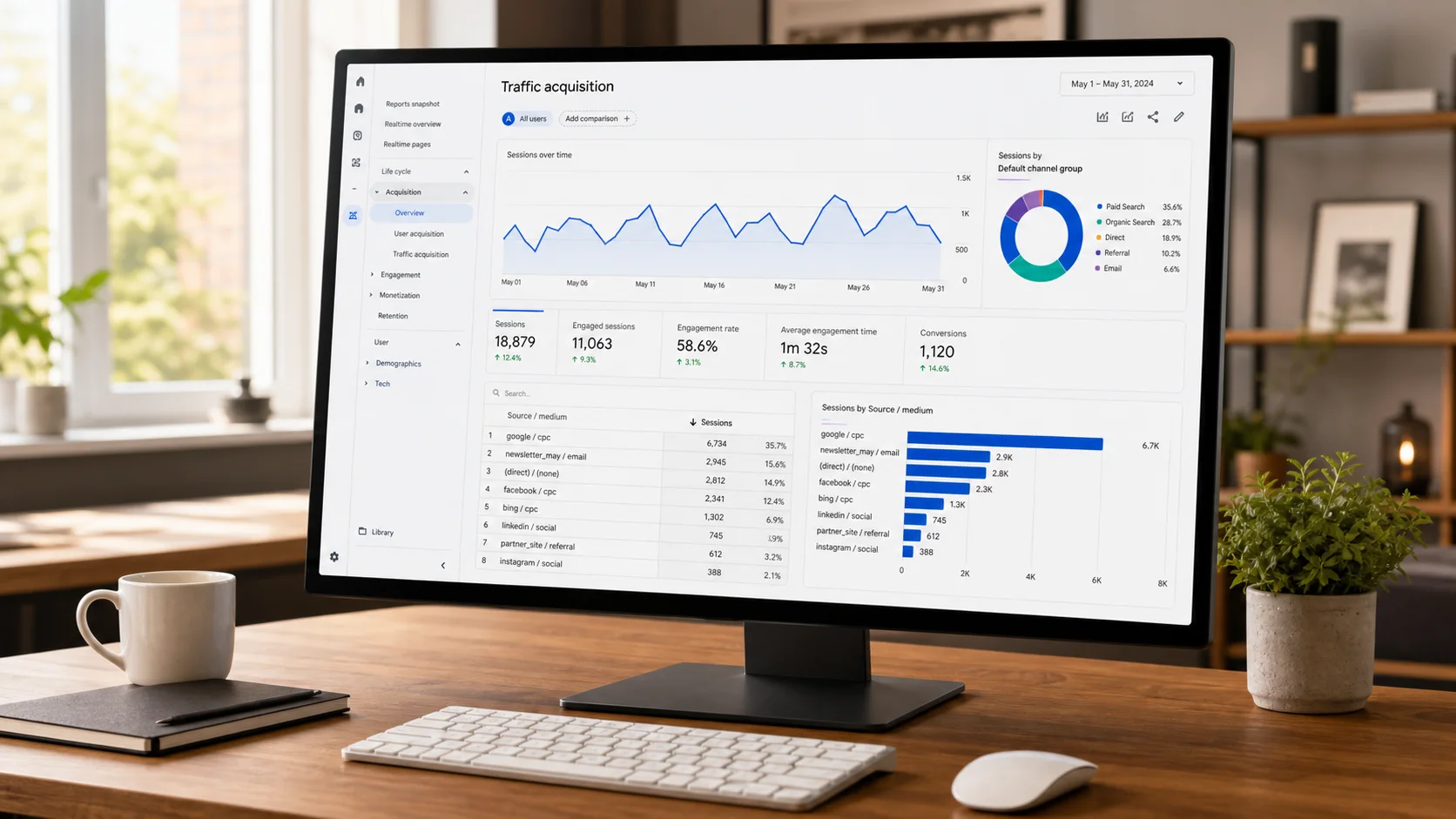
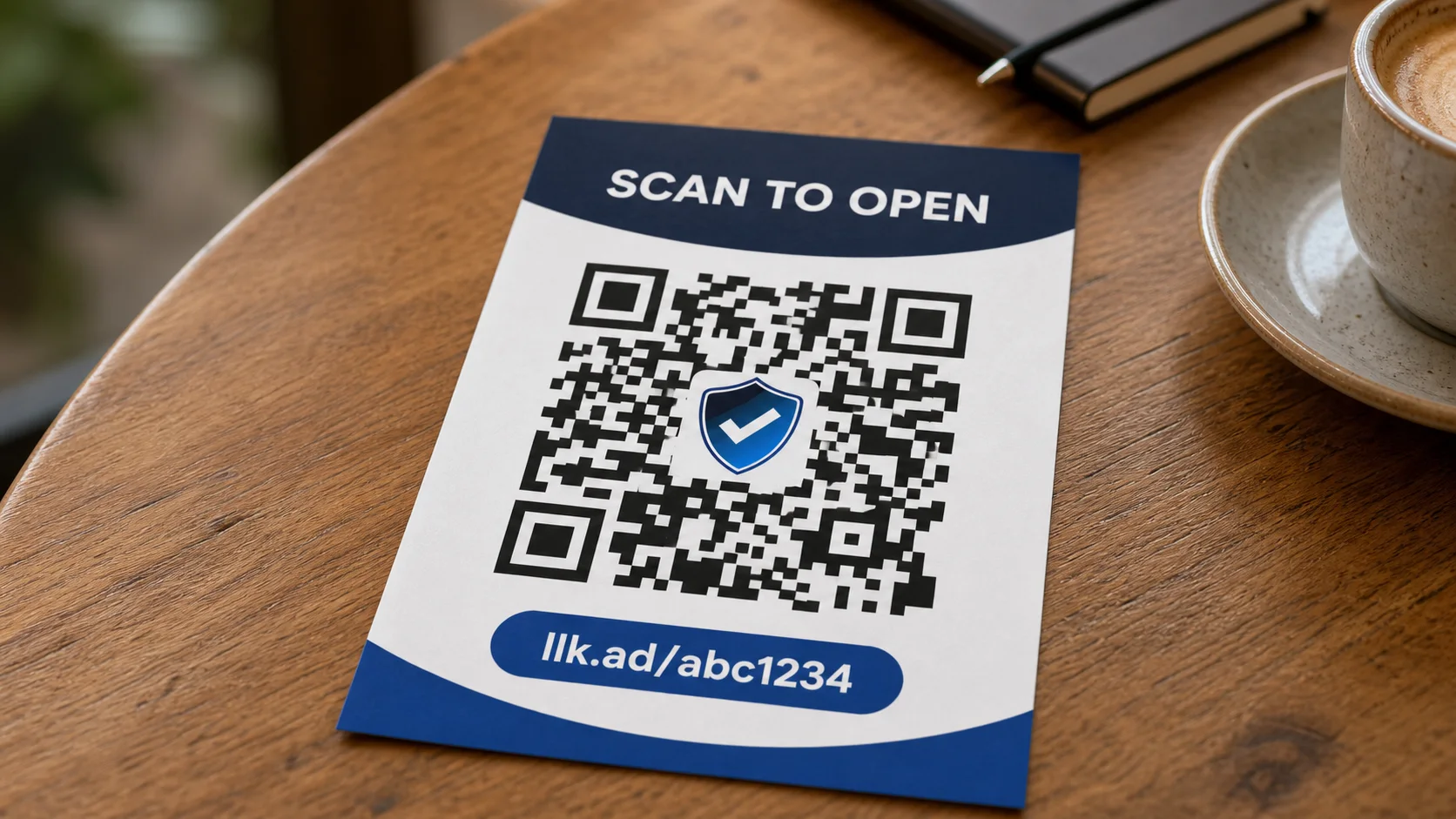
 AI-generated illustration by cutdown.link
The simple idea: print a QR code that contains a short address you control. When the page behind it changes, update the destination in your dashboard. The QR code printed on your leaflet, sign, or sticker stays the same.
See how editable QR codes work, where they are useful, and create one for free.
For example, your QR code might contain https://llk.ad/abc1234. A scan first opens that short link, which then sends the visitor to the destination you have saved. The destination can change while the llk.ad address remains fixed.
Create an editable QR code
- Sign in to cutdown.link. A link created without an account cannot be edited later.
- Create a managed link and paste the address of the page you want people to see.
- Give the link a clear dashboard title so you can find it later.
- Open the new
llk.adlink on your phone and check the destination. - Download its QR code as JPEG or SVG.
Add your logo
The QR code includes the cutdown.link shield by default. On the link page, you can upload your own PNG, JPEG, or WebP logo, add more space around it, return to the default mark, or remove the logo.
Your custom logo is processed in your browser and is not uploaded to our server. Download the QR code again after changing the logo so your printed file contains the version you selected.
Test before printing
Use SVG for professional printing because it stays sharp when resized. JPEG is convenient for a document or quick office print.
Keep a clear white border around the code and do not stretch, crop, or cover it. Avoid folds, sharp curves, glare, and very small printing. Print one proof at the final size and scan it with several phones before ordering a full batch.
Change the destination later
Open the link in your dashboard, replace its destination, and save the change. Every existing copy of the QR code will lead to the new page. You do not need to generate, download, or print the code again.
You can also set a future start time, add an expiry, or pause the link. These controls change what happens after a scan; they do not change the printed QR code.
Use a quick QR code without an account only when you are certain the destination will never need to change.
Frequently asked questions
- Why does the printed QR code keep working?
- It contains a stable llk.ad short link. You change where that link redirects, not the QR image itself.
- Can I put my logo inside the QR code?
- Yes. Use the cutdown.link mark included by default or upload your own PNG, JPEG, or WebP logo. The logo is processed in your browser and is not uploaded to our server.
- Which QR format should I print?
- Use SVG for leaflets, signs, stickers, and professional printing because it remains sharp at different sizes. JPEG works well in simple office documents.
Experienced Marketer and Technologist