 QR codes generated with the cutdown.link renderer
A QR code does not have to be a plain black square. With cutdown.link, you can choose a ready-made look, match your brand colours, soften the shapes, and place a logo in the centre.
The design changes how the code looks. It does not change the short link it contains.
Start with the right link
For a quick, one-off code, create a QR code without an account. To change its destination later, sign in before creating the link. You can then open that link in your dashboard and customise its QR code there.
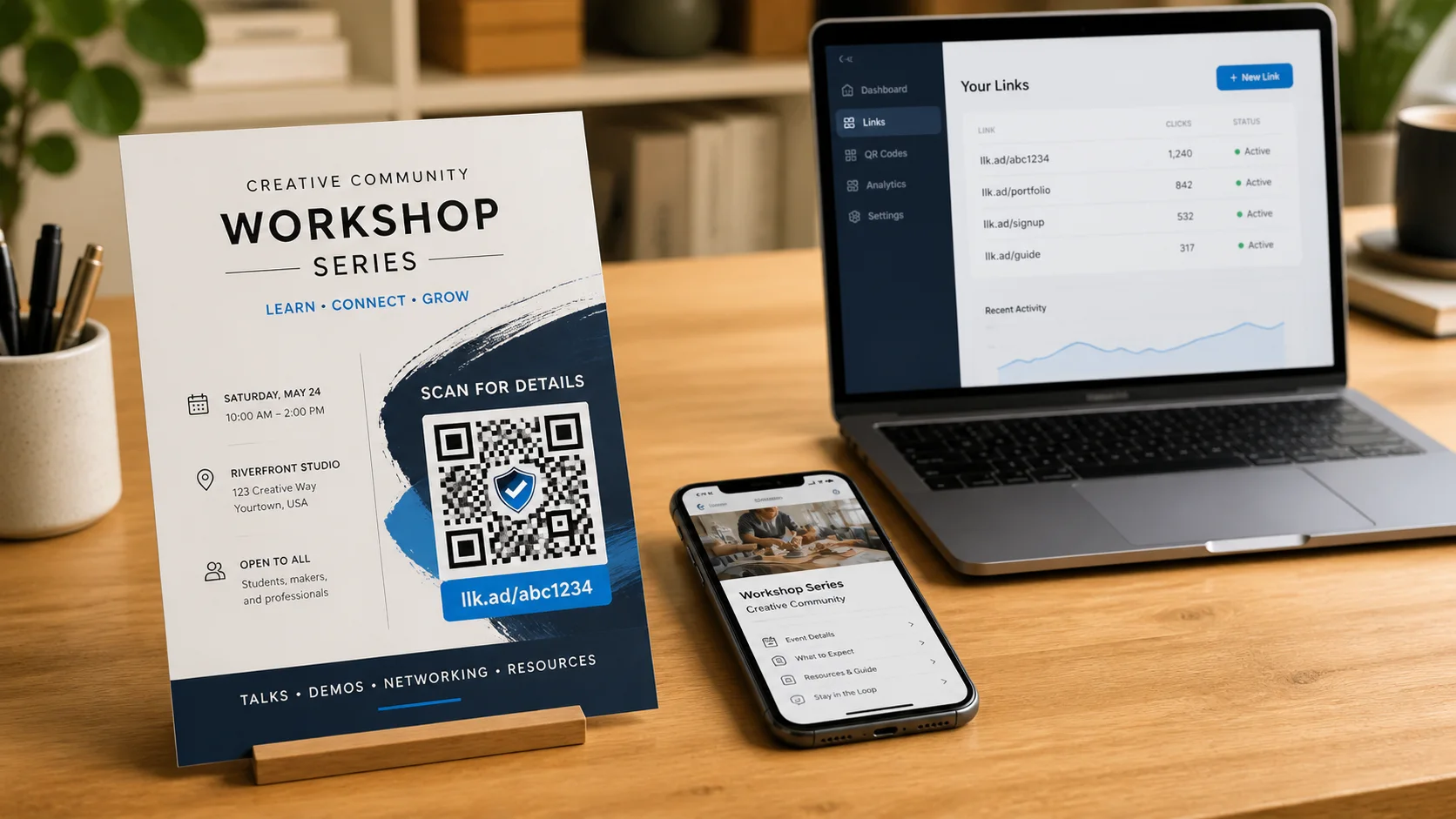
Use a managed link for packaging, table cards, posters, or anything you expect to keep in circulation. Changing its destination later will not require a new QR image.
Choose a starting look
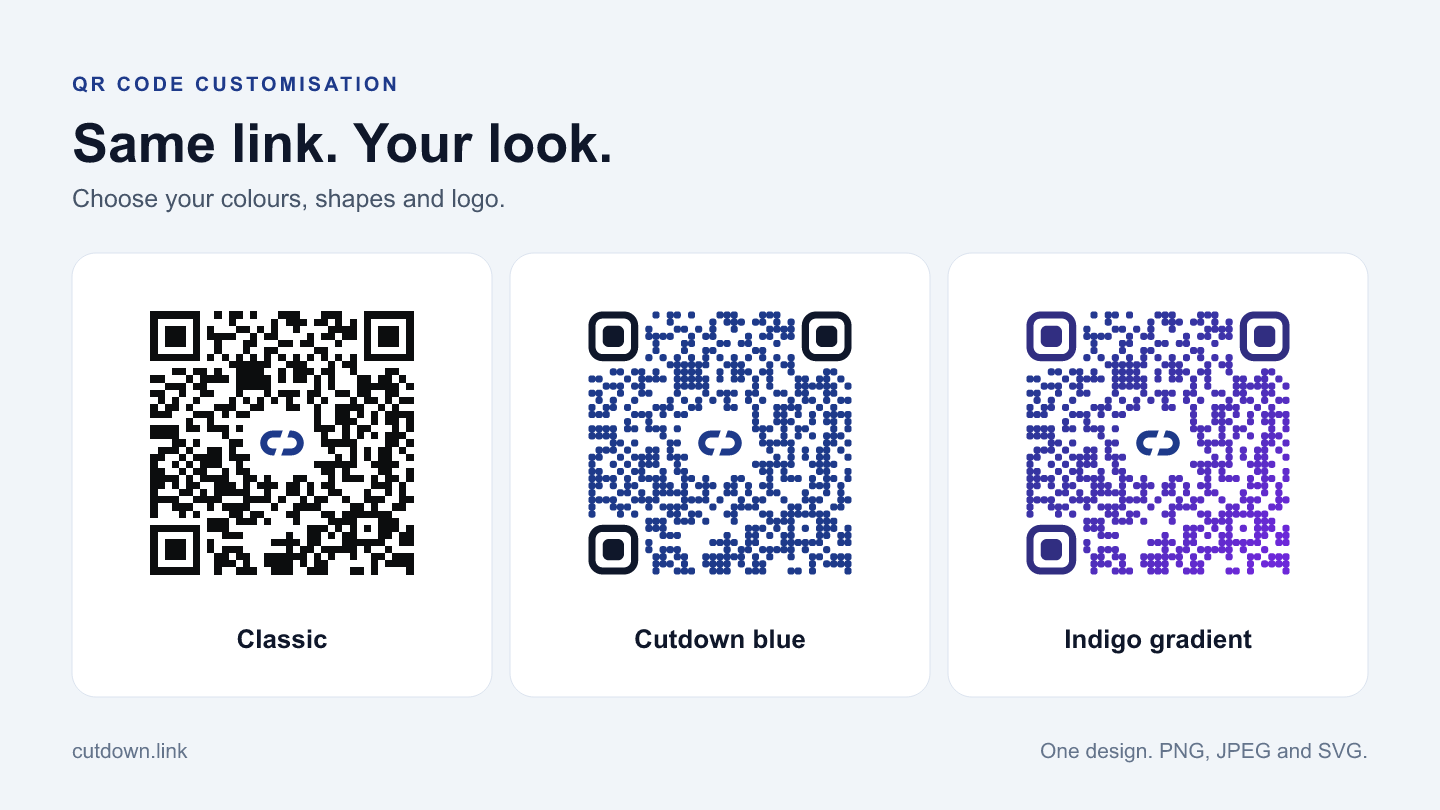
Open Customise design below the QR preview. Choose one of four presets:
- Classic uses dark square modules and corners.
- Cutdown blue pairs rounded shapes with deep blue ink.
- Indigo gradient blends blue and violet with rounded shapes.
- Soft teal uses rounded shapes in a dark teal palette.
A preset changes the colours and shapes, so choose it before making your own adjustments. It keeps your current logo selection.
Adjust colours and shapes
Use Modules to switch between Square and Rounded. The small marks and the three large corner patterns follow that choice.
The Ink and Corners controls let you choose separate colours. Turn on Gradient to blend the ink into a second colour, then choose Gradient end.
The background stays white, with a clear border around the code. Very pale colours are rejected when they do not meet the editor’s contrast threshold. If you see a request for darker colours, adjust the ink, corners, or gradient end until the preview returns.
These checks help, but they cannot account for every phone, printer, surface, or lighting condition. Always test the final design where people will use it.
Add your logo
Choose Upload logo and select a PNG, JPEG, or WebP file under 2 MB, with neither dimension larger than 4096 pixels. A simple symbol with enough space around it usually reads better at this small size than a full wordmark or detailed illustration.
Your logo is prepared in the browser and embedded directly in the QR downloads. It is not uploaded to cutdown.link. You can choose Use default to restore the Clean cut symbol, or No logo for an unbranded code.
Select More space around logo if the centre feels crowded. The renderer leaves a clear area around the logo and uses high error correction to help accommodate the covered modules. That is still a reason to scan-test the result, especially with a detailed or unusually shaped logo.
Download the right format
- PNG is a useful default for websites, presentations, and documents. It keeps crisp edges without JPEG compression.
- JPEG works when your document or publishing tool requires it.
- SVG stays sharp when resized and is the best starting point for professional print artwork.
PNG and JPEG downloads are 1024 × 1024 pixels. All three formats use the same design, and the logo is included in the file. Keep the downloaded artwork: design settings and custom logos are not currently saved to your account or restored after refreshing the page.
Check before printing
Scan the downloaded file with more than one phone. Confirm that the destination is correct. Then place the artwork in your final layout without stretching it, cropping its white border, or putting text over the code.
Print one sample at the intended size and test it from a realistic distance, in the lighting where it will be displayed. Glossy covers, reflections, and small print can make a code harder to read even when the original file scans on screen.
Changing the design later requires a new download and new printed artwork. Changing a managed link’s destination is different: the existing printed code continues to open that same short address, which redirects to the updated page.
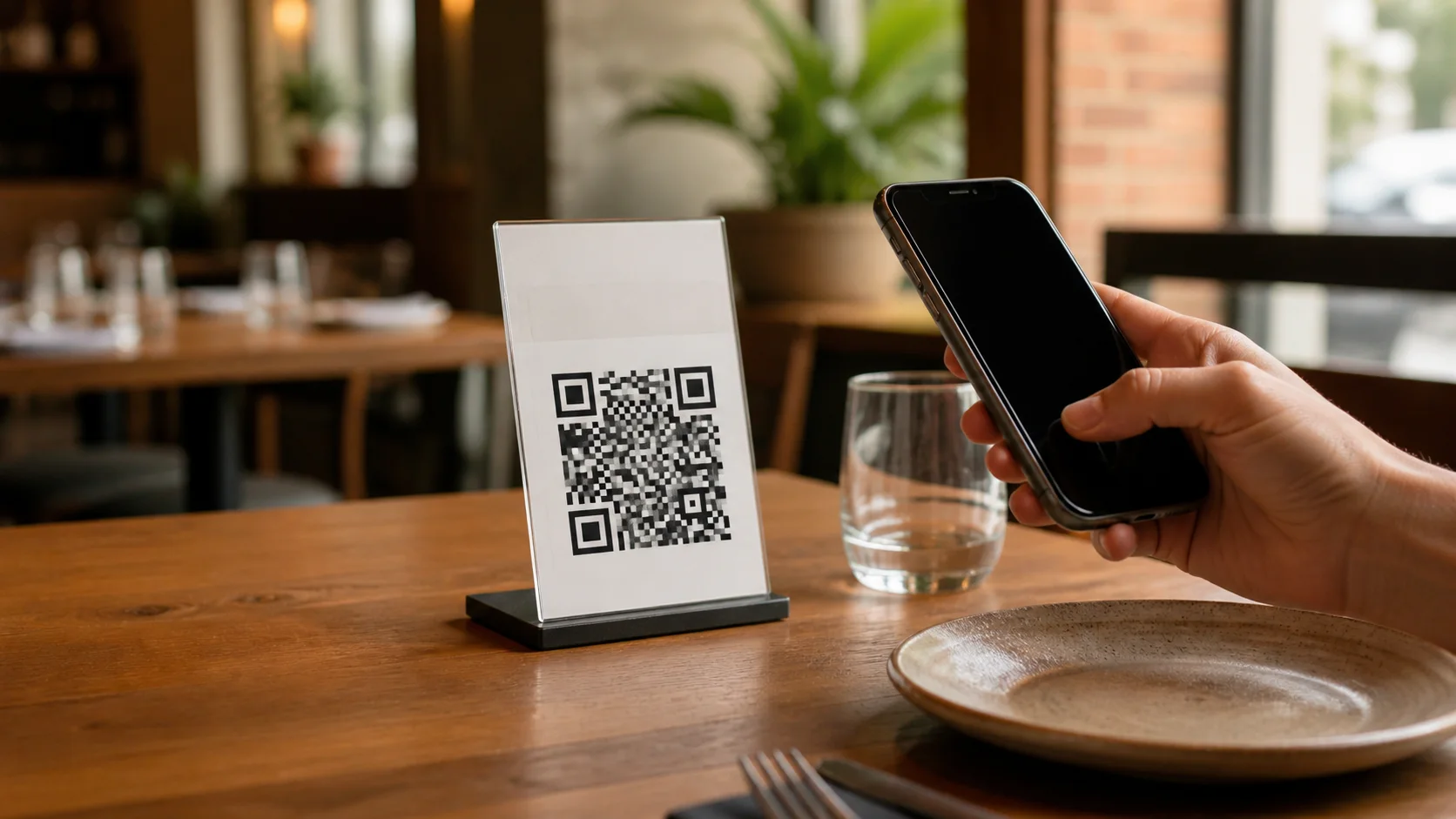
For a real-world example, see how to use a dynamic QR code on restaurant tables.
Frequently asked questions
- Is my uploaded logo sent to cutdown.link?
- No. Logo preparation and QR generation happen in your browser. The uploaded logo is embedded in your downloaded files.
- Will my design be saved when I return?
- Design settings and uploaded logos are not currently saved to your account. Keep your downloaded files; after refreshing or reopening the editor, you will need to apply the design again.
- Can I change the destination after printing a custom QR code?
- Yes, if you created the link while signed in. Changing the managed link’s destination keeps its short address and printed QR code working. A quick link created without an account cannot be edited later.
- Which format should I send to a print shop?
- Choose SVG for artwork that needs to scale. Confirm the final size and layout with the print shop, then scan a printed sample before producing the full run.
Experienced Marketer and Technologist